
Last Updated: August 20, 2025
If you are manually importing lists in the eXp International HubSpot instance, please click here for proper instructions.
- Make a copy of the HubSpot Import Guide and add in the contact properties you want to import into HubSpot.
- Name the list import.
- Refer to our naming convention document to maintain consistency in HubSpot, making it easier to search and manage assets!
- Once the list import is finalized, navigate to the File drop-down menu
- Hover over Download, then select (.csv)

- Log into HubSpot
- Go to CRM > Lists
- Click Import a file
- Click Start import
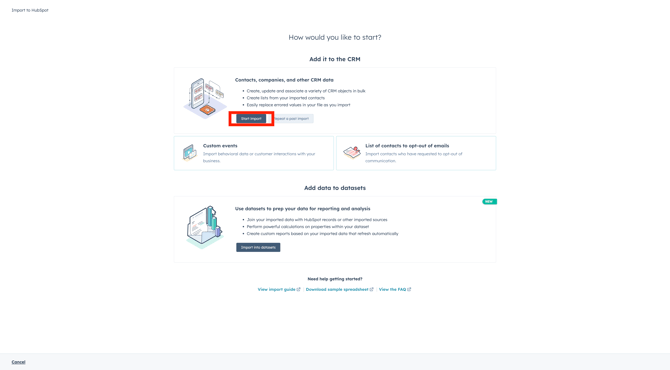
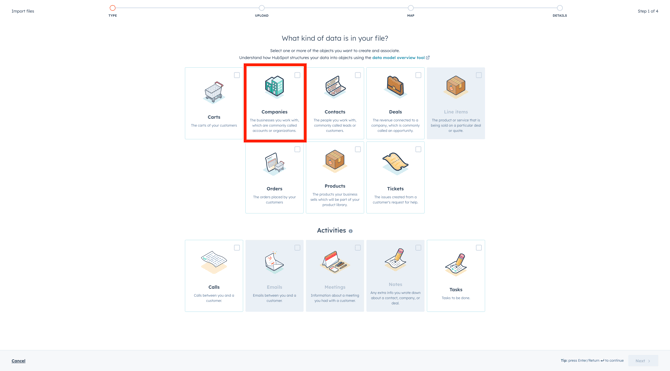
- On the What kind of data is in your file page, select the Contacts option.
- Click Next
- Drag-and-drop the .csv file that you want to import into the system.
- Click Next

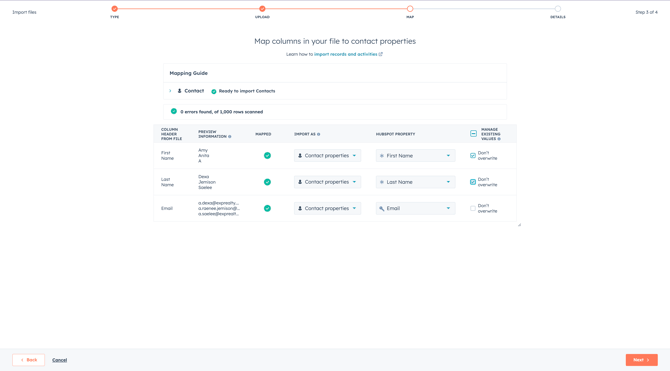
- Check the mapping fields to ensure all contact properties are being mapped and imported correctly.
- Click Next
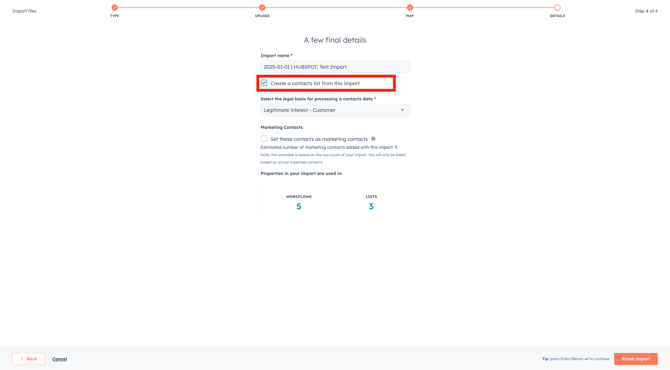
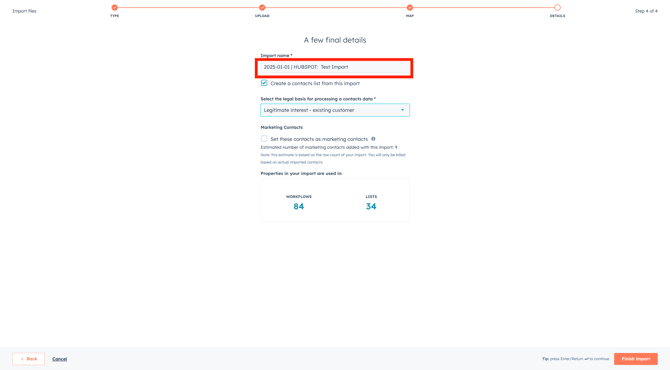
- Check to ensure the list import name is correct one last time, then check off the box to create a list of these contacts from this import.
- Select the legal basis for processing a contact's data:
- Legitimate interest - customer: Choose this basis if you are importing active agents into HubSpot.
- Legitimate interest - lead: Choose this basis if you are importing prospects/leads into HubSpot.
- Select the legal basis for processing a contact's data:
- Click Finish import
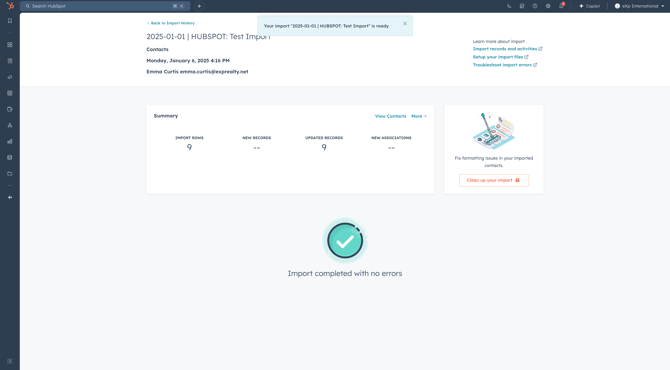
- Your list will take some time to import. Once the import is completed, a green checkmark will appear on the screen.
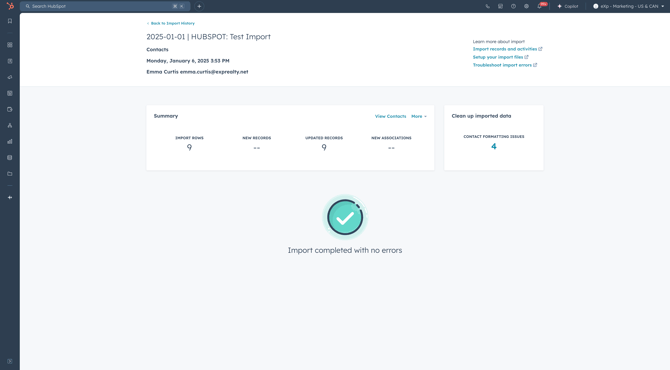
If you have any errors with manually importing a list into HubSpot, please let Nicolette Kleinhampl and/or Emma Curtis know and we can help!
Importing Lists (eXp International)
- Make a copy of the HubSpot Business Units Import Guide and add in the contact properties you want to import into HubSpot.
- Name the list import.
- Refer to our naming convention document to maintain consistency in HubSpot, making it easier to search and manage assets!
- Select the correct Business Unit using the Business Units drop-down menu.
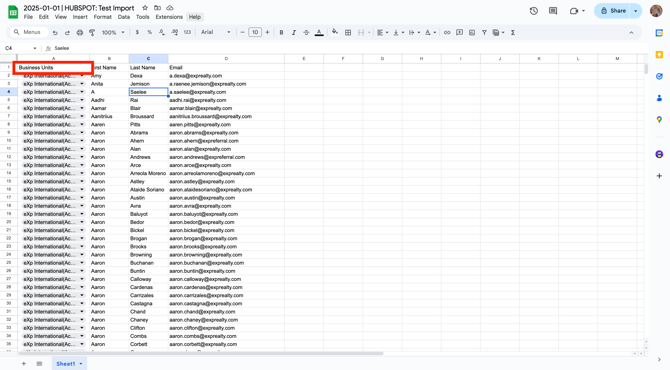
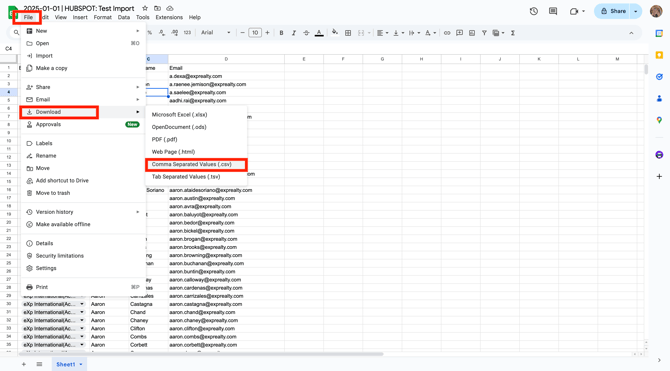
- Once the list import is finalized, navigate to the File drop-down menu
- Hover over Download, then select (.csv)
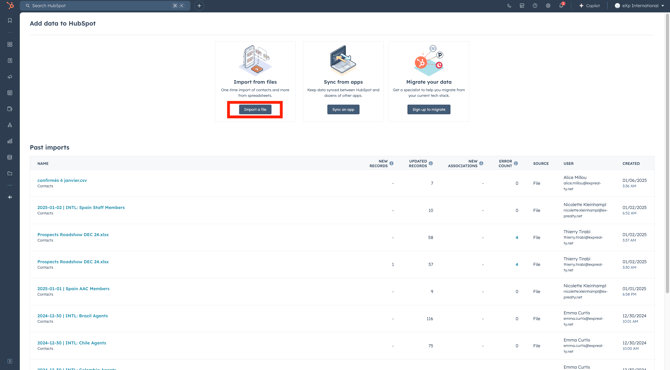
- Log into HubSpot
- Go to CRM > Lists
- Click Import a file
- Click Start import
- On the What kind of data is in your file page, select the Contacts option
-
- Click Next
- Drag-and-drop the .csv file that you want to import into the system.
- Click Next
- Select the legal basis for processing a contact's data:
- Legitimate interest - exisiting customer: Choose this basis if you are importing active agents into HubSpot.
- Legitimate interest - prospect/lead: Choose this basis if you are importing prospects/leads into HubSpot.
- Click Finish import
- Your list will take some time to import. Once the import is completed, a green checkmark will appear on the screen.
If you have any errors with manually importing a list into HubSpot, please let Monique Commandeur know so assistance can be provided.