Last Updated: August 20, 2025
If you are creating forms in the eXp International HubSpot instance, please utilize the Brands drop-down menu and choose the respective Brand for your country.
- Navigate to Marketing > Forms
- In the upper right hand corner, click Create form
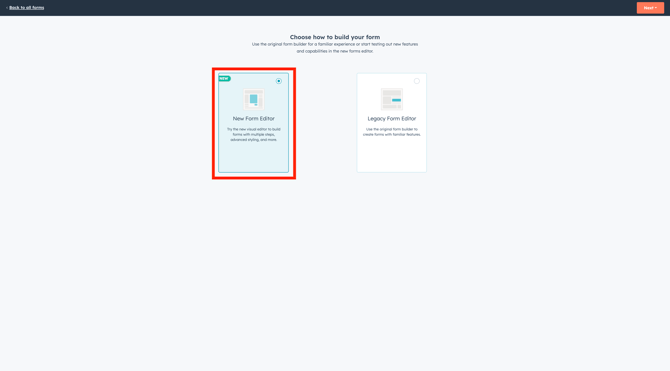
- Choose how to build your form
- New Form Editor: Try the new visual editor to build forms with multiple steps, advanced styling, and more.
- Legacy Form Editor: Use the original form builder to create forms with familiar features.
- Click Next
- Choose form creation type:
- From scratch: Creating a new form from scratch is most commonly used, allowing you full autonomy and customization to your form.
- From template: Choose from a template to start your new form, providing you with an already started template with all the necessary form fields and options.
- Once you have chosen which form creation type, you can begin editing your form.
- At the top of the screen, click the pencil icon to edit the form name
Refer to our naming convention document to maintain consistency in HubSpot, making it easier to search and manage assets!
Add + Edit Form Properties + Steps
Form properties can help to capture contact's information.
To add a form field:
- In the left hand panel, use the Properties tab to search for existing properties.
- Use the Other tab to add in various images or rich text fields.

Not finding the property you need?
If you are operating out of the US or Canada, please contact Nicolette Kleinhampl/Emma Curtis to help.
If you are operating out of international markets, please contact Monique Commandeur to help.
- Use the drag-and-drop feature to drag and drop form fields into your form. Form fields can be placed above others, below others, next to other fields, or even on different pages of the form.
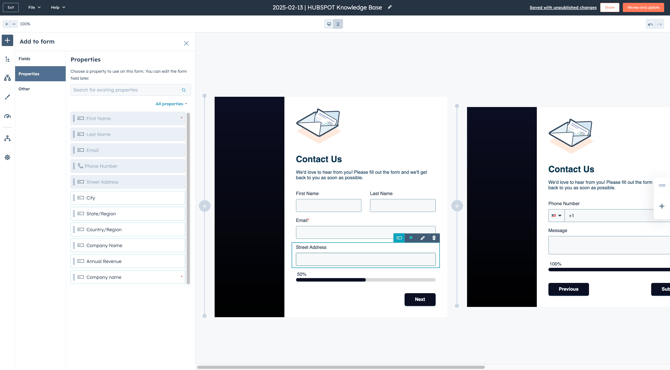
Form steps allow you to have multiple steps on your form, allowing for a better user experience.
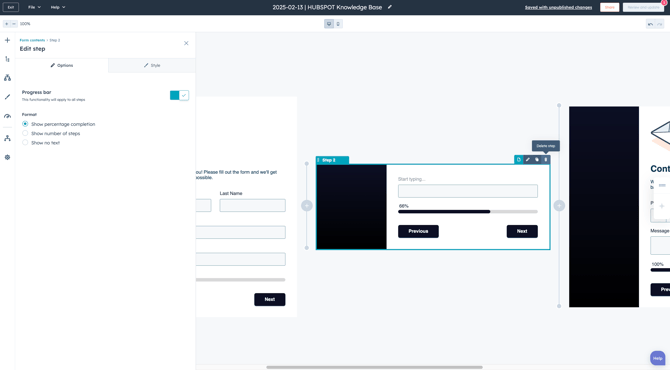
To add a new form step:
- Click the + icon that is between steps to add a new form step
- To rearrange the form steps, click on the desired step to drag and drop the form to the desired spot
- To delete a form step, hover over the desired step and click the trash can icon
Manage Your Form
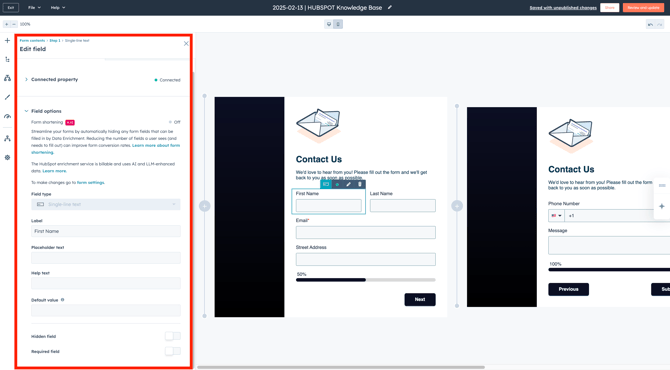
- Click the form field
- In the left hand panel, edit the form field options as needed.
- Options tab: Customize your form field by making it required, hiding it from view, editing the label that appears, or adding help text and placeholder text for additional clarity.
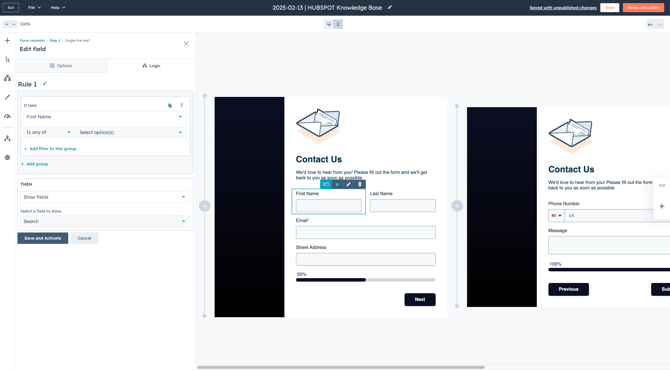
- Logic tab: Configure advanced options for your form fields by adding logic. Set actions for fields that have been previously completed or dynamically display additional form fields based on responses to earlier ones.
Customize Your Form Settings
From the Settings tab, you can customize the internal aspects of the form.
General:
- Add to marketing campaign: All marketing assets should be linked to a marketing campaign in HubSpot to ensure accurate tracking, better performance insights, and seamless alignment across your marketing efforts.
- Submission settings: Select the drop-down menu to select a team or user(s) to send submission notifications to.
Please note that only HubSpot user emails are able to have form submission notifications sent to them. External HubSpot user emails cannot be used here. If you need help, please contact the HubSpot Team!
Publish Your Form
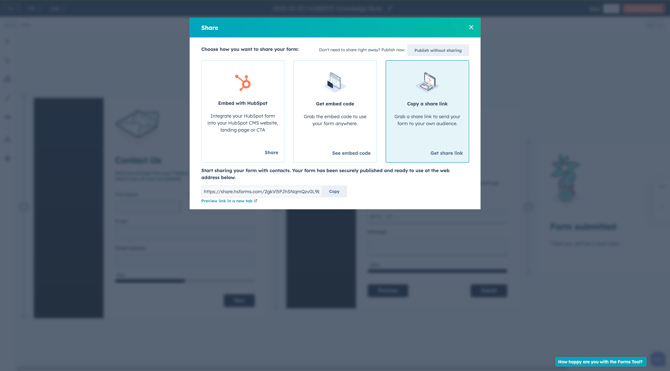
In the top right of the screen, click Review and update, then Publish to publish your form. Once the form has been published, a pop-up menu will appear with shareable options for the form.
- Embed code with HubSpot: Embed the form directly into a HubSpot landing page or CTA.
- Embed code: Use the form embed code to embed the form on an external website that does not live in HubSpot.
- Share link: Use the form share link in marketing emails to capture contact information.