
Last Updated: November 17, 2025
Create a New Email
If you are creating emails in the eXp International HubSpot instance, please utilize the Brands drop-down menu and choose the respective Brand for your country. This will associate accurate brand colors, logos, etc.
- Navigate to Marketing > Email
- Click Create email
- Regular: A one-off personalized email that can be sent to a specific segment of contacts.
- Example: This email type can be used when sending an email to your active agents.
- Automated: A personalized email that can be arranged to send to specific contacts based on enrollment criteria/filters for a workflow.
- Example: This email type can be used when creating an automated drip campaign, allowing any contacts enrolled to receive this email.
Select a template:
- Each email template has customizable elements, such as text fields, images and office footers/locations.
- You can use the search bar to search for specific categories or templates.
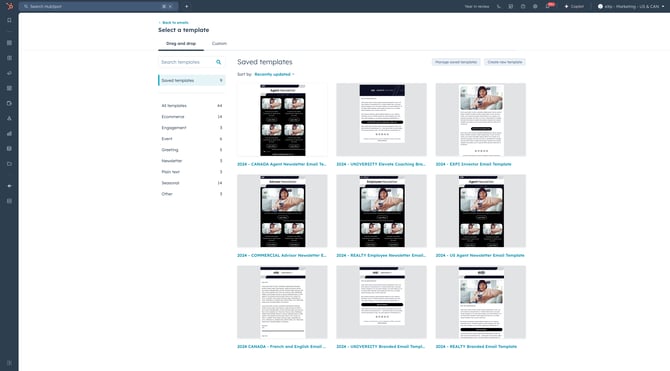
- Hover over the template you want to use the click Choose template.
Edit Content and Layout
Customize the following content:
- Email title
-
- Refer to our naming convention document to maintain consistency in HubSpot, making it easier to search and manage assets!
- Logo or image (if applicable)
- Email content + copy
- Office footer/location + social media handles
-1.png?width=670&height=371&name=HubSpot%20Knowledge%20Base%20Screenshots%20(8)-1.png)
Edit Send to & Inbox
On the top of the email, you will be able to edit the send to tab and inbox details.
- Click the Send to section on the top of the email to bring up these details.
- Choose the Sending method as To a segment of contacts to ensure your email is sent manually.
- Choose the Subscription type, which will relate to the purpose of your email.
-1.png?width=670&height=371&name=HubSpot%20Knowledge%20Base%20Screenshots%20(12)-1.png)
Below the Send to section, click the inbox content section to edit the subject line, preview text, from name, from email, and reply-to email.
- Subject line: The email subject line that will appear in the reader's inbox.
- Utilize Breeze AI to generate unique subject lines based on the email content itself!
- Preview text: Add preview text that will appear next to the subject line in the reader's inbox.
- Utilize Breeze AI
- From name: The name your recipients will see when they receive the email
- Click the drop-down menu and select a HubSpot user. You can add new from names, if applicable.
- From email address: The email address the email is sent from.
- Click the drop-down menu and select an address or add a new email address.
- If you want email replies to go to a different email address, deselect the Use as my reply-to address box and choose a different address.
-1.png?width=670&height=371&name=HubSpot%20Knowledge%20Base%20Screenshots%20(10)-1.png)
Edit Setup
On the left-hand side of the screen, click the Cogwheel icon to finish setting up your email.
- Associate your email with a marketing campaign. All marketing assets should be linked to a marketing campaign in HubSpot to ensure accurate tracking, better performance insights, and seamless alignment across your marketing efforts.
-1.png?width=670&height=371&name=HubSpot%20Knowledge%20Base%20Screenshots%20(11)-1.png)
Scheduling Your Email
Once the sending method, email subscription, and contact segment(s) have been identified, click the Clock icon, located on the left-hand side of your screen.
- Choose when you would like to send the email.
- Select Send now to send your email out now.
- Select Schedule for later to schedule your email for a later date.
-1.png?width=670&height=371&name=HubSpot%20Knowledge%20Base%20Screenshots%20(13)-1.png)
Review & Schedule
Once your email is fully completed and you are ready to schedule or send the email, click the Review and schedule button in the top right-hand corner.
- Review the email details provided to ensure content, etc is accurate.
- Click the Schedule button below to schedule the email.