
Last Updated: September 16, 2025
If you are creating workflows in the eXp International HubSpot instance, please click here for proper instructions.
- Navigate to Automations > Workflows
- Click Create workflow in the upper right hand corner to create a new workflow.
- Choose workflow type:
- From scratch: Creating a workflow from scratch is most commonly used, allowing you full autonomy and customization to your automations.
-
- From template: Choose from a template to start your workflow, providing you with an already started template with all the necessary automations.

- To name your workflow and give it a description, click the pencil icon at the top
Refer to our naming convention document to maintain consistency in HubSpot, making it easier to search and manage assets!
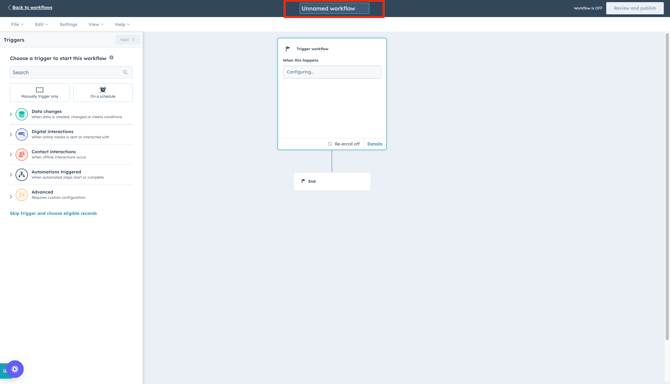
Set Enrollment Triggers
Enrollment triggers are a set of criteria that can automatically enroll records into your workflow. Add enrollment triggers manually, or use Breeze AI to generate enrollment triggers.
-
- In the left hand panel, select how to begin your workflow.
- Use Data changes to start your workflow from a segment membership, when a contact record is added to a segment or removed from a segment.
- Use Digital interactions to start your workflow from a form event, when a contact record submits a form, views a form or interacts with a form.
- Use Contact interactions to start your workflow from a meeting event, when a contact record schedules a meeting or when a meeting is changed.
- When your workflow trigger is selected, click Save.
- In the left hand panel, select how to begin your workflow.

Re-enrollment + Un-enrollment
Enabling contact re-enrollment in HubSpot workflows allows contacts to re-enter a workflow if they meet the criteria again, ensuring flexibility and preventing missed opportunities for engagement or automation.
-
- Records will only enroll in a workflow the first time they meet the enrollment trigger criteria. This can be reviewed and turned on after choosing your enrollment trigger.
- Use the toggle switch to turn re-enrollment on.
- Records will only enroll in a workflow the first time they meet the enrollment trigger criteria. This can be reviewed and turned on after choosing your enrollment trigger.
If you are running an event campaign or providing any type of downloadable asset, please ensure re-enrollment is turned on so that contacts can be re-enrolled and receive the event/asset information again.
Enabling contact un-enrollment in HubSpot workflows allows contacts to be un-enrolled if they complete a necessary action in the workflow or if they become part of a suppression segment. This option can ensure the contact is not being sent through an irrelevant series of actions.
-
- Records can un-enroll in a workflow if they do not meet the certain criteria. This can be reviewed and turned on after choosing your enrollment trigger.
- Use the toggle bars to toggle on un-enrollment for a suppression segment or a workflow goal.
- Records can un-enroll in a workflow if they do not meet the certain criteria. This can be reviewed and turned on after choosing your enrollment trigger.

Adding Actions
You can manually add actions to your workflow, or use Breeze AI to generate actions. After adding actions, feel free to move them or clone them to continue your workflow process!
-
- Use the + icon to add various actions to your workflow, such as sending email communications, delays, adding to static segments, etc.
- The most common actions that are used can be found below:
- Use the + icon to add various actions to your workflow, such as sending email communications, delays, adding to static segments, etc.
-
-
-
- Add delay
- Send email
- Add to static segment
-
-
-
- After setting up each action in your workflow, click Save to save them.
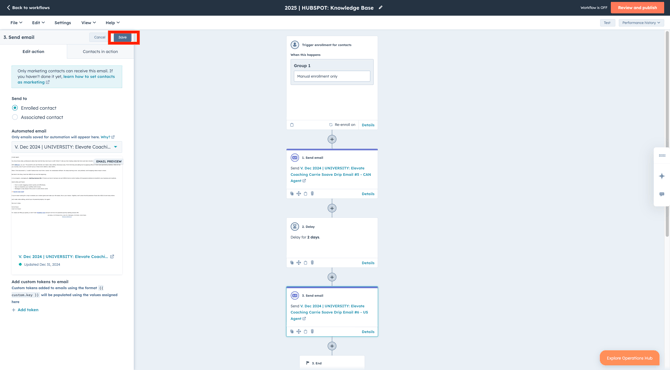
Turn On Your Workflow
When your workflow and its actions are finalized, turn your workflow on to start the workflow.
-
- In the upper right hand corner, click Review and publish.
- Review the enrollments, re-enrollments, and un-enrollments
- Review the timing and notifications
- Review the connections
- Review the workflow details
- In the upper right hand corner, click Review and publish.

Need to duplicate an existing workflow? Check out our article for cloning workflows, proving a quick and easy way to save time and maintain consistency.
Create Your Workflow (eXp International)
- Log into HubSpot
- Use the Brands drop-down menu and choose the respective Brand for your country.
- Navigate to Automations > Workflows
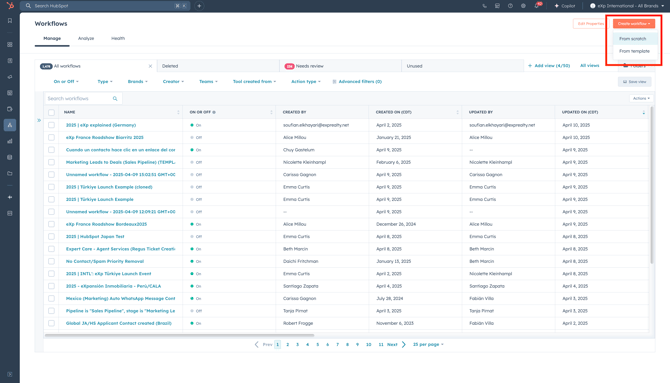
- Click Create workflow in the upper right hand corner to create a new workflow.
- Choose workflow type:
- From scratch: Creating a workflow from scratch is most commonly used, allowing you full autonomy and customization to your automations.
- From template: Choose from a template to start your workflow, providing you with an already started template with all the necessary automations.
- To name your workflow and give it a description, click the pencil icon at the top
Refer to our naming convention document to maintain consistency in HubSpot, making it easier to search and manage assets!
- Click Save
Set Enrollment Triggers
Enrollment triggers are a set of criteria that can automatically enroll records into your workflow. Add enrollment triggers manually, or use Breeze AI to generate enrollment triggers.
-
- Use the following as an enrollment trigger for your workflow
- Use Data changes to start your workflow from a segment membership, when a contact record is added to a segment or removed from a segment.
- Use Digital interactions to start your workflow from a form event, when a contact record submits a form, views a form or interacts with a form.
- Use Contact interactions to start your workflow from a meeting event, when a contact record schedules a meeting or when a meeting is changed.
- When your workflow trigger is selected, click Save.
- Use the following as an enrollment trigger for your workflow
Re-enrollment + Un-enrollment
Enabling contact re-enrollment in HubSpot workflows allows contacts to re-enter a workflow if they meet the criteria again, ensuring flexibility and preventing missed opportunities for engagement or automation.
-
- Records will only enroll in a workflow the first time they meet the enrollment trigger criteria. This can be reviewed and turned on after choosing your enrollment trigger.
- Use the toggle switch to turn re-enrollment on.
- Records will only enroll in a workflow the first time they meet the enrollment trigger criteria. This can be reviewed and turned on after choosing your enrollment trigger.
If you are running an event campaign or providing any type of downloadable asset, please ensure re-enrollment is turned on so that contacts can be re-enrolled and receive the event/asset information again.
Enabling contact un-enrollment in HubSpot workflows allows contacts to be un-enrolled if they complete a necessary action in the workflow or if they become part of a suppression segment. This option can ensure the contact is not being sent through an irrelevant series of actions.
-
- Records can un-enroll in a workflow if they do not meet the certain criteria. This can be reviewed and turned on after choosing your enrollment trigger.
- Use the toggle bars to toggle on un-enrollment for a suppression segment or a workflow goal.
- Records can un-enroll in a workflow if they do not meet the certain criteria. This can be reviewed and turned on after choosing your enrollment trigger.
Adding Actions
You can manually add actions to your workflow, or use Breeze AI to generate actions. After adding actions, feel free to move them or clone them to continue your workflow process!
-
- Use the + icon to add various actions to your workflow, such as sending email communications, delays, adding to static segments, etc.
- The most common actions that are used can be found below:
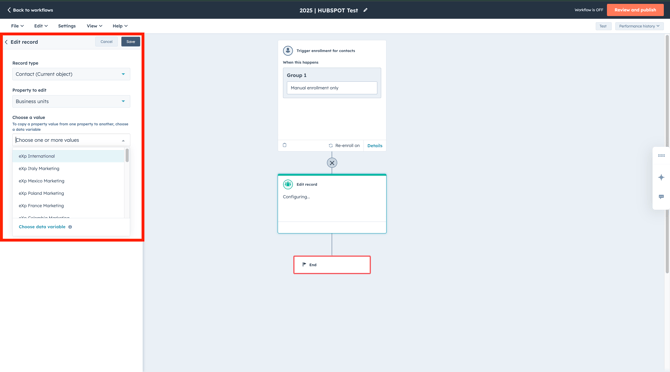
- Assignment of Brand
-
-
- Click the + icon to add an action
- Navigate to CRM > Edit record
- In the Property to edit drop-down menu, use the search bar to type in Brand
- Use the value drop-down menu to assign the applicable Brand
- Click Save
-
-
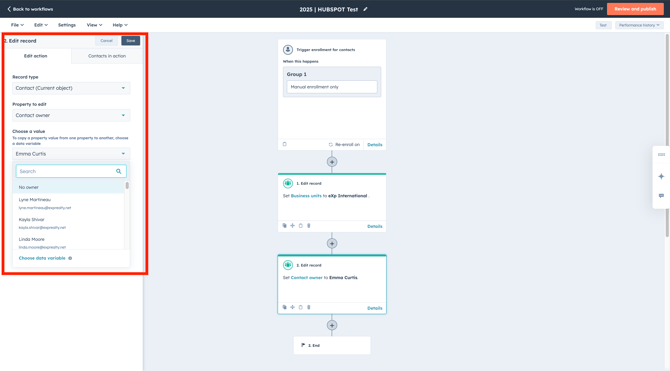
- Assignment of contact owner:
- Click the + icon to add an action
- Navigate to CRM > Edit record
- In the Property to edit drop-down menu, select Contact owner
- Use the search bar to type in the desired contact owner's email address or name
- Click Save
- Assignment of contact owner:
-
- Add delay
- Click the + icon to add an action
- Click Delay to add a delay in your workflow
- Use the Delay type drop-down menu to choose the set time
- Click Save
- Add delay

-
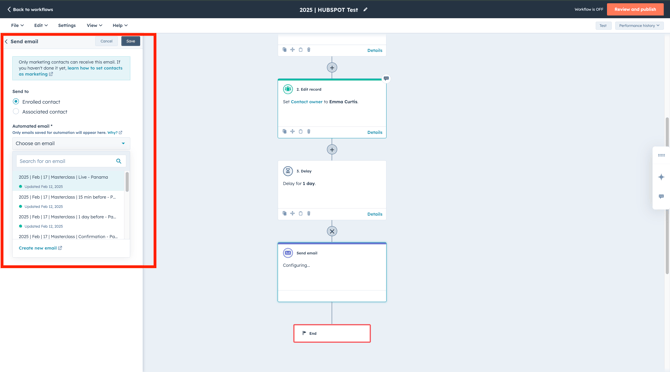
- Send email
- Click the + icon to add an action
- Navigate to Communications > Send email
- Use the Automated email drop-down menu to select the automated email you want to add to your workflow
- Click Save
- Send email
-
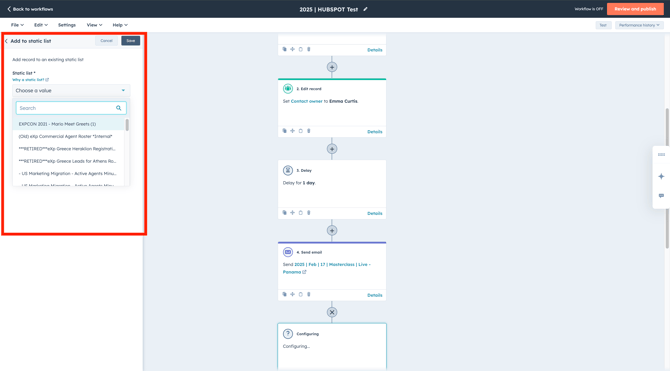
- Add to static segment
- Click the + icon to add an action
- Navigate to Marketing > Add to static segment
- Use the Static segment drop-down menu to select the segment you want the enrolled contacts to funnel into
- Click Save
- Add to static segment
- After setting up each action in your workflow, click Save to save them.
Turn On Your Workflow
When your workflow and its actions are finalized, turn your workflow on to start the workflow.
-
- In the upper right hand corner, click Review and publish.
- Review the enrollments, re-enrollments, and un-enrollments
- Review the timing and notifications
- Review the connections
- Review the workflow details
- In the upper right hand corner, click Review and publish.

Need to duplicate an existing workflow? Check out our article for cloning workflows, proving a quick and easy way to save time and maintain consistency.