
Last Updated: August 20, 2025
If you are navigating through contact records in the eXp International HubSpot instance, please utilize the Brands drop-down menu and choose the respective Brand for your country.
- Navigate to CRM > Deals

Deal Overview
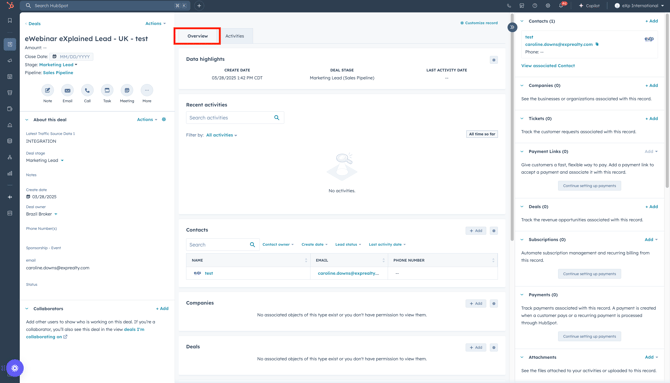
Use the overview portion to see a high-level overview of the deal's activity. View the deal's create date, recent activities, and the contact information.
Deal Activities
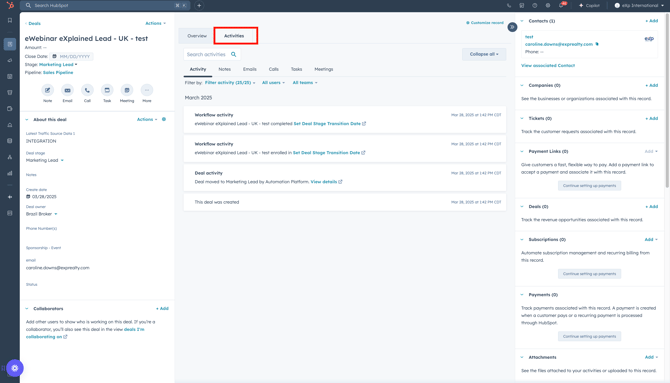
Use the deal activity section to see all the activity the deal has gone through. View the form submissions, marketing emails, one-to-one emails, and more.
-
- To gain a deeper insight into a specific activity, simply click on the desired activity to open it.
🎯 Pro Tip: Use the tabs within the deal activity portion to filter activities related to notes, emails, calls and more!
About This Deal
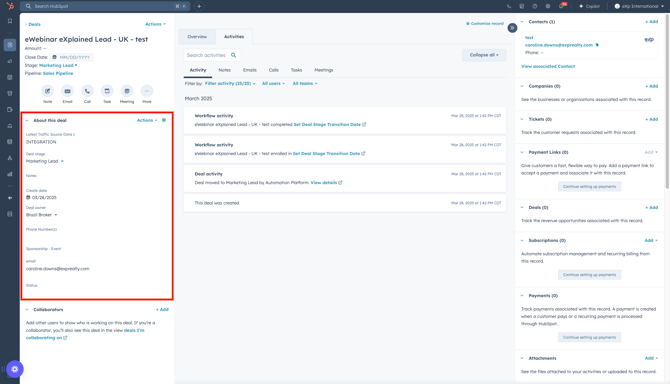
Each deal record provides an about this deal menu , located on the left-hand sidebar, where you can view details around the deal.
🚀 Pro Tip Use the icons underneath the deal record name for quick actions, like creating a one-to-one email or note!
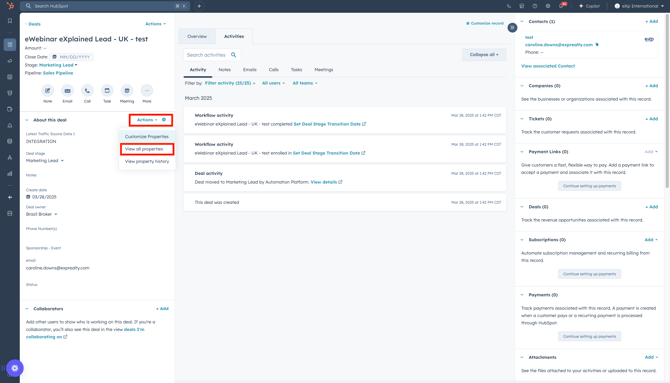
- Use the Actions drop-down menu, then click View all properties to see all the properties for the deal.
Contacts, Tickets, & More
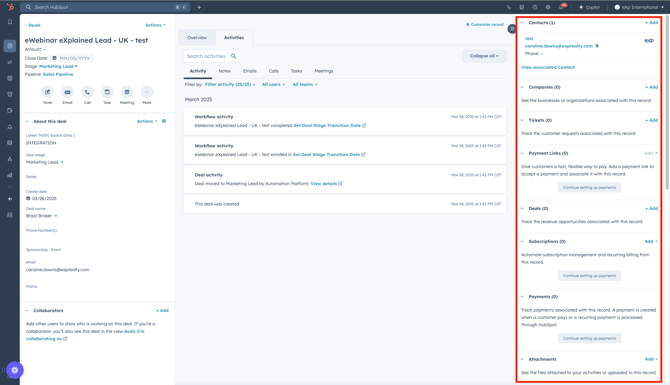
Each deal record provides a contacts, tickets, & more menu, located on the right-hand side, where you can view the associated contact, tickets, companies, and more.
🎯 Pro Tip: You can customize the left + right sidebar menus based on your team! Interested in custom views? Reach out to Monique Commandeur for assistance.