
Last Updated: August 20, 2025
Tired of the back-and-forth emails just to schedule a meeting? HubSpot Meetings makes it effortless by allowing contacts to book time directly on your calendar. Simply connect your Gmail or Office 365 calendar, and voilà! Your meetings sync automatically, keeping everything organized in one place. Think of it as your built-in Calendly alternative—but better, because it works directly within HubSpot, ensuring that every meeting is tracked and linked to your leads.
If you are creating meeting pages in the eXp International HubSpot instance, please utilize the Brands drop-down menu and choose the respective Brand for your country.
1. Navigate to the HubSpot Meeting Scheduler
- Head to Sales > Meetings Scheduler in your HubSpot account.

2. Create Your Scheduling Page
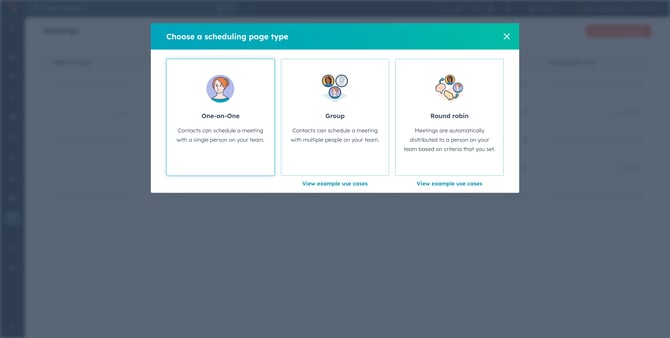
In the top right, click Create scheduling page. You'll be asked to choose a meeting type. One-on-One meetings are the most common. If you want to explore other meeting types please contact the HubSpot Marketing Team.
- One-on-One: Contacts schedule time with just you (or another designated user).
- Click Next to start customizing your scheduling page.
Personalizing Your Scheduling Page
Fill out the key meeting details:
-
Internal Name: This appears when you insert the meeting link into an email.
-
Organizer: Who’s hosting the meeting? Assign the owner.
-
Title: This is what will show up on your invitee’s calendar (e.g., "Product Demo"). Bonus: Use personalization tokens for dynamic content.
-
Location: Specify how you'll meet—whether it’s a Zoom link, Google Meet, a phone call, or an office address.

🚀 Pro Tip: If you're using Microsoft Teams, Zoom, UberConference, or Google Meet, you can automatically generate a video conference link!
Customize How You Book
Personalizing Your Scheduling Page:
-
Scheduling Page URL: This is the link prospects will use to book time with you. (Heads up: You can’t change this after creation!)
-
Title: What will appear at the top of your scheduling page.
-
Meeting Duration: Offer multiple options (e.g., 15, 30, 60 minutes).
-
Time Zone: Ensure your availability aligns with your working hours.
-
Available Times: Set the days and time slots you’re open for meetings.

Extra Customization for a Pro Look
Expand Additional Settings to tweak the following:
-
Profile Image: Choose between your avatar, company logo, or upload a custom image.
-
Scheduling Window: Decide how far in advance people can book (e.g., rolling 2 weeks or a fixed date range).
-
Minimum Notice: Set how much advance notice you need before a meeting is booked.
-
Buffer Time: Ensure breathing room between appointments.
-
Start Time Increments: Allow meetings to start every 15, 30, or 60 minutes.

🎯 Pro Tip: Need flexibility? Add buffer times between meetings so you’re not booked back-to-back!
Collecting Info from Attendees
Click the Form tab to customize the information you collect. By default, attendees must enter their First Name, Last Name, and Email. You can:

✔ Enable CAPTCHA to prevent spam.
✔ Allow invitees to bring additional guests.
✔ Capture marketing consent for compliance.
✔ *COMING SOON* Add a custom question to gather more details before the meeting.
✔ *COMING SOON* Include a contact property field (e.g., job title, company size).
Automating Follow-Ups & Reminders
In the Automation tab, set your confirmation and reminder emails:
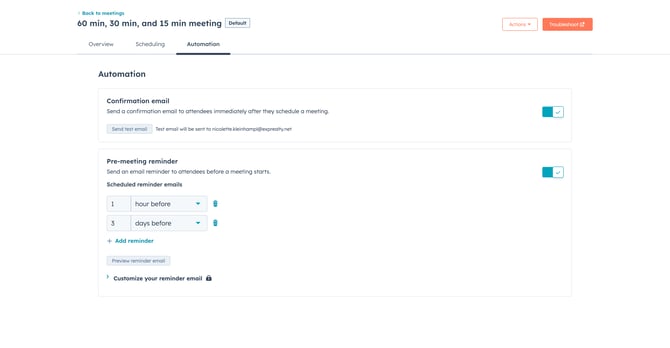
🔹 Send automatic confirmations when a meeting is booked.
🔹 Schedule reminder emails before the meeting.
🔹 *COMING SOON* Edit the reminder email when a meeting is booked.
🔹 (Note: HubSpot doesn’t allow editing confirmation email content.)
Connect Your Calendar
Once your HubSpot Meeting Scheduler is complete, don't forget to connect your calendar to ensure your proper availability is being pulled through based on your calendar.
Ready to Streamline Your Meetings?
And just like that, your HubSpot Meeting Scheduler is up and running! Now, you can focus on what truly matters—connecting with prospects, clients, and team members without the hassle.
Next Steps: Share your meeting link via email, embed it on your website, or add it to your HubSpot sequences to start booking meetings effortlessly!