Last Updated: June 10, 2025
If you are creating landing pages in the eXp International HubSpot instance, please click here for proper instructions.
- Navigate to Content > Landing Pages
- In the upper right hand corner, click the Create button
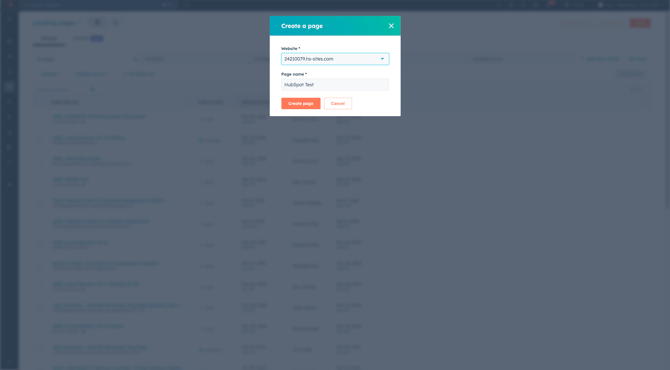
- Choose the domain URL that the landing page will be associated to
- Name the landing page
Refer to our naming convention document to maintain consistency in HubSpot, making it easier to search and manage assets!
- Click Create page
- On the templates screen, choose between a variety of landing page templates that will fit your landing page needs. Review the table below to see how we use some of the most common landing page templates!

- To preview a template, click Preview template
- To use a template, click Choose template
- Once you find the landing page template you want, click Choose template
Please note that your eXp entity branding will be automatically applied to your landing page templates!
Customizing Your Landing Page
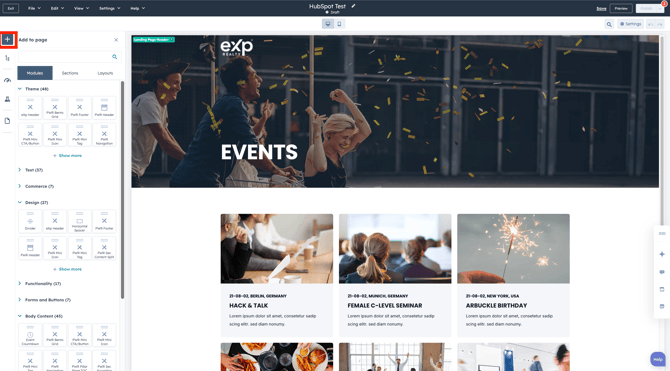
- To customize your landing page, click the + icon on the left hand menu.
-
In the left-hand panel, explore a variety of modules to enhance your landing page. Simply use the drag-and-drop feature to easily place modules where you need them.
Customize Page Settings
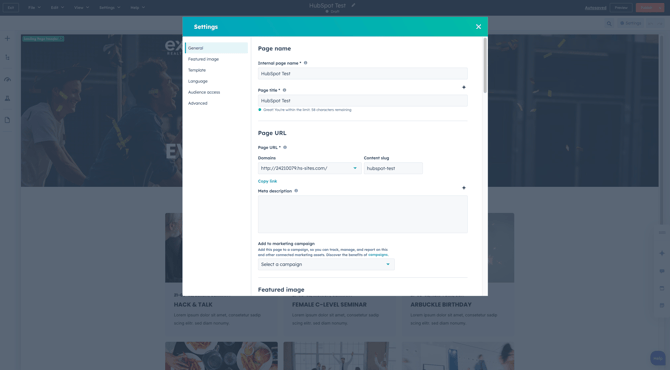
- Navigate to Settings > General
- For the Internal Page Title, assign a name to the landing page that will only be visible to your internal team.
- For the Page Title, set an external name for the landing page that will be visible to your audience.
- Use the Add to a Marketing Campaign option to associate the landing page with a specific marketing campaign for better tracking and alignment.
Publish Your Landing Page
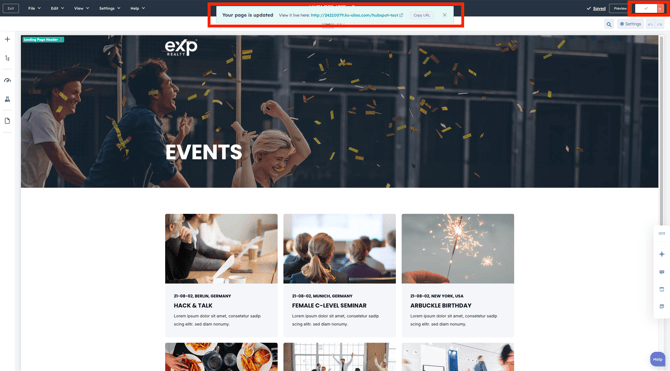
Once you've customized your page's content and settings, you can publish your landing page.
- In the upper right hand corner, click Publish to publish your landing page live.
Unpublish Landing Page
Landing pages can be unpublished if they are no longer relevant, if the content is no longer valid or if the landing page topic/event is completed.
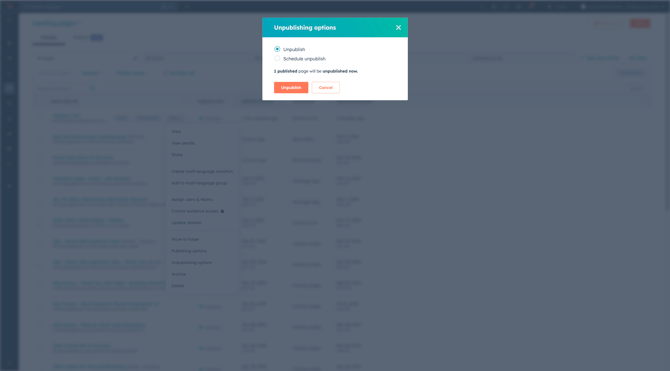
- Hover over the landing page you want to unpublish
- Click More
- Navigate to Unpublishing options on the drop-down menu
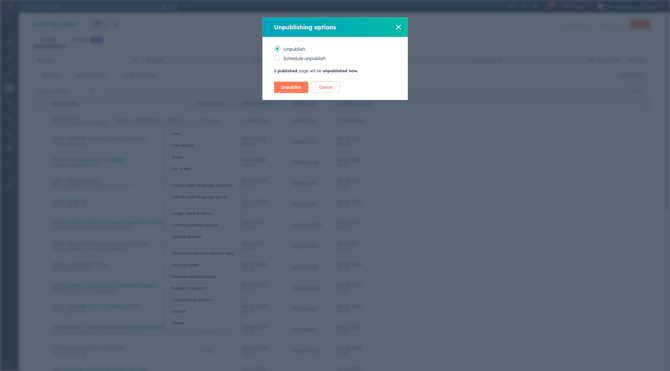
- Choose which unpublish type
- Unpublish: Unpublish the landing page now
- Schedule unpublish: Schedule a time for the landing page should unpublish
Create Landing Pages (eXp International)
- Log into HubSpot
- Use the Brands drop-down menu and choose the respective Brand for your country.
- Navigate to Content > Landing Pages
- In the upper right hand corner, click the Create button
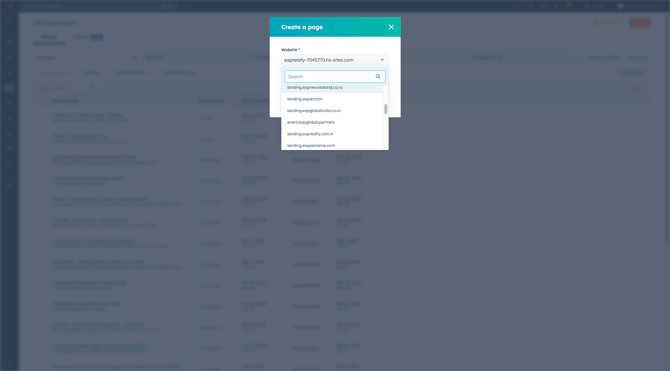
- Choose the country specific domain URL that the landing page will be associated to
- Name the landing page
Refer to our naming convention document to maintain consistency in HubSpot, making it easier to search and manage assets!
- Click Create page
- On the templates screen, choose between a variety of landing page templates that will fit your landing page needs. Review the table below to see how we use some of the most common landing page templates!
- To use a template, click Choose template
- Once you find the landing page template you want, click Choose template
Please note that your country Brand will automatically adjust the correct branding to your landing page templates!
Customizing Your Landing Page
- To customize your landing page, click the + icon on the left hand menu.
- On the left hand panel, use any of the modules to add to your landing page.
- Use the drag-and-drop feature to drag and drop landing page modules.

Customize Page Settings
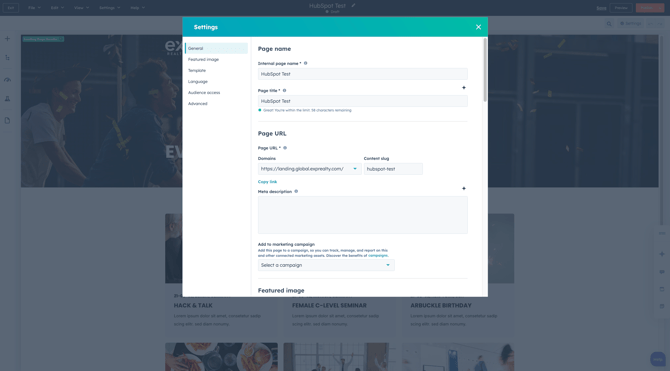
- Navigate to Settings > General
- For the Internal Page Title, assign a name to the landing page that will only be visible to your internal team.
- For the Page Title, set an external name for the landing page that will be visible to your audience.
- Use the Add to a Marketing Campaign option to associate the landing page with a specific marketing campaign for better tracking and alignment.
Publish Landing Page
Once you've customized your page's content and settings, you can publish your landing page.
- In the upper right hand corner, click Publish to publish your landing page live.
Unpublish Landing Page
Landing pages can be unpublished if they are no longer relevant, if the content is no longer valid or if the landing page topic/event is completed.
- Hover over the landing page you want to unpublish
- Click More
- Navigate to Unpublishing options on the drop-down menu
- Choose which unpublish type
- Unpublish: Unpublish the landing page now
- Schedule unpublish: Schedule a time for the landing page should unpublish