Last Updated: September 16, 2025
What is an Active Segment?
An active segment in HubSpot is dynamic and updates automatically as contacts meet or no longer meet the criteria you set.
Curious on how to create a static segment? Follow along here to learn more!
Creating an Active Segment
If you are creating active segments in the eXp International HubSpot instance, please utilize the Brands drop-down menu and choose the respective Brand for your country.
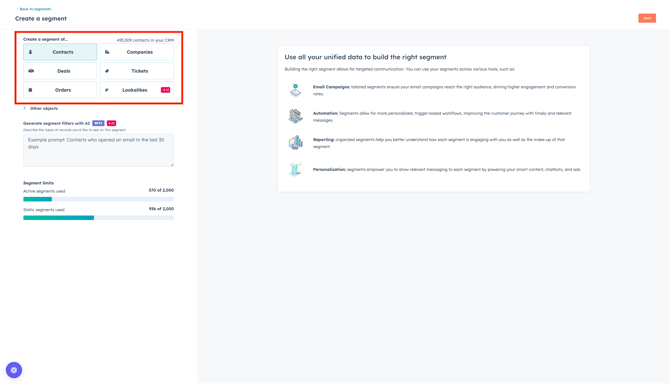
- Navigate to CRM > Segments (Lists)
- Click the Create segment button in the upper right-hand corner
- In the next screen, choose how you want to start your segment
- Select Contacts
- Click Next
🎯 Pro Tip: Utilize Breeze AI to describe the kind of segment filters you want to see in the active segment!
- Name your active segment in the upper left-hand corner
- Refer to our naming convention document to maintain consistency in HubSpot, making it easier to search and manage assets!
- Click the Filters button to add filters to your segment
- Scroll or use the search bar to type, then choose the desired filter category
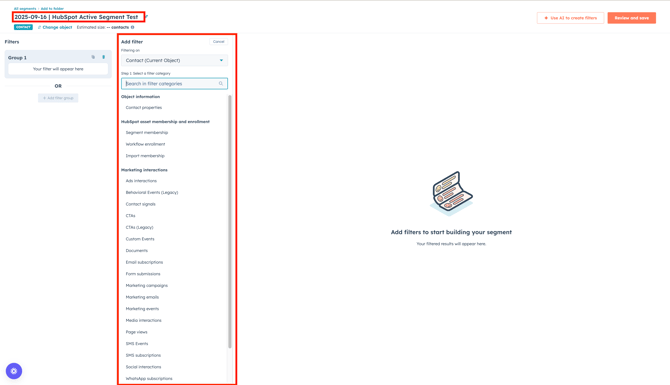
- Within the category, scroll or use the search bar to type, then select the property within the category you wish to filter by.
- Choose an option for the property or activity to filter by.
- If you want to add multiple filters, click the + Add filter group to add more filters or criteria.
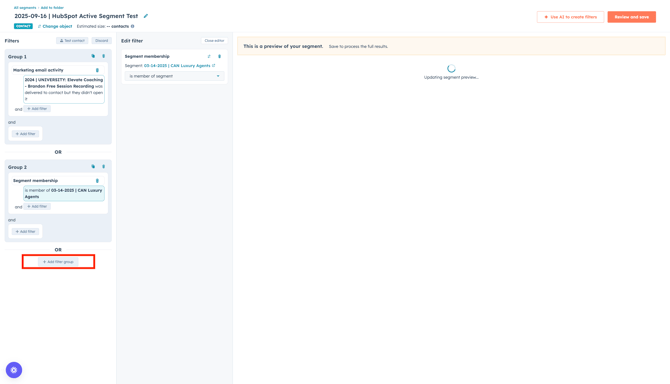
- To remove a group of criteria or filters, click the trash can icon to discard a group.
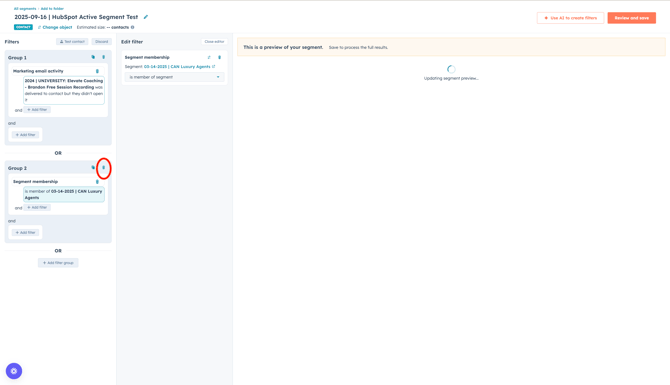
- To clone a group of criteria or filters, click the clone icon to clone a group.
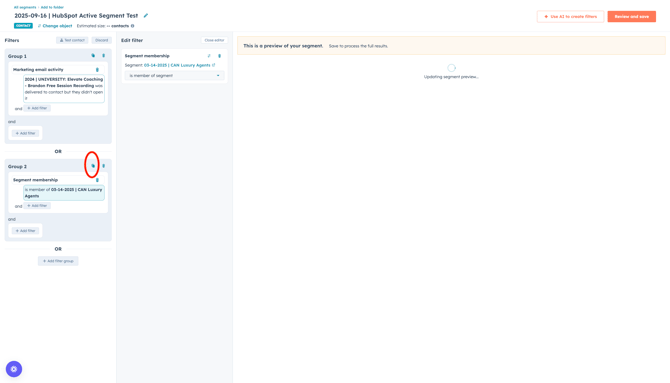
- Once your active segment has all of the criteria and/or filters needed, click Review and save in the upper right hand corner.
- In the next screen, enter the following details:
- Choose processing type: Select which type of segment you want to create. For this, choose Active.
- Properties > Description: Add a description about this segment, providing further insight.
- Exclusions: Choose contacts, if any, need to be excluded from this segment
- Access: Manage what team(s) can view this segment
- Click Save and process segment

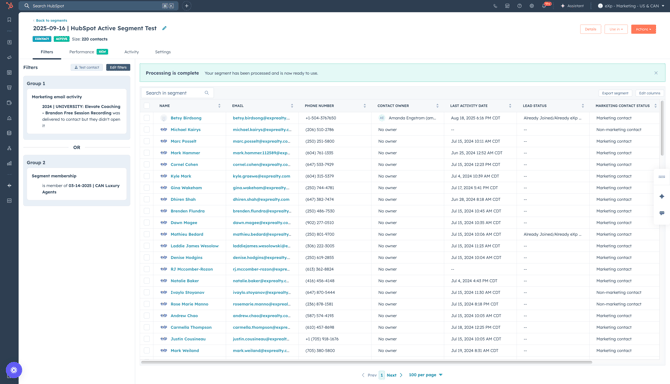
The segment will start to process based on the criteria and/or filters added. The set of contact records that appear first will just be a preview of your active segment. When the segment is saved and fully processed, the approximate number of contact records will appear underneath the segment name.