Last Updated: September 16, 2025
Cloning Active Segments
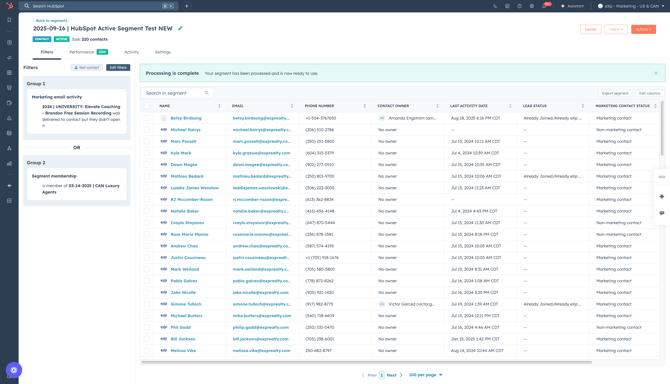
If you have an active segment in HubSpot that you want to edit or duplicate, you can clone a segment to add new filters or criteria.
-
- Log into HubSpot
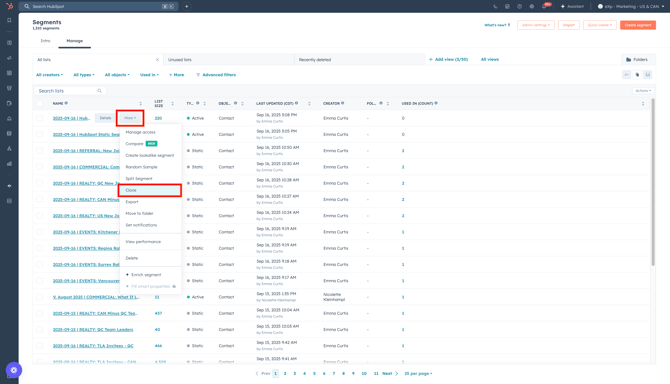
- Navigate to CRM > Segments (Lists)
- Hover over the segment you want to clone, then use the More drop-down menu and click Clone.
- Rename your segment in the upper left-hand corner
- Click the Edit filters in the filter menu to add or remove any filters necessary.
- Click Review and save
- In the next screen, enter the following details:
- Choose processing type: Select which type of segment you want to create.
- Properties > Description: Add a description about this segment, providing further insight.
- Exclusions: Choose contacts, if any, need to be excluded from this segment
- Access: Manage what team(s) can view this segment
- Click Save and process segment
Go into your active segment at any point and change the filter criteria! Active segments allow filter criteria to be updated at any given point in time.
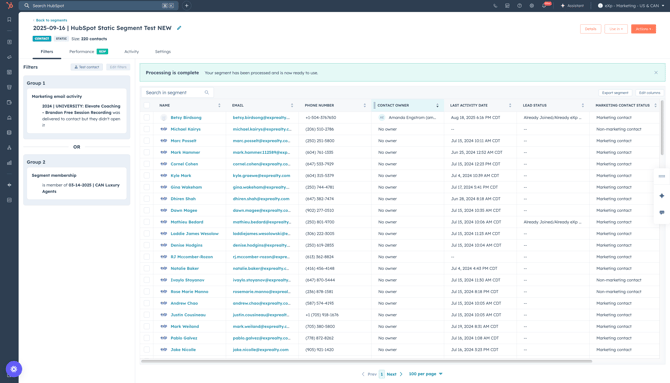
Cloning Static Segments
If you have a static segment in HubSpot that you want to edit or duplicate, you can clone a segment to add new filters or criteria.
-
- Log into HubSpot
- Navigate to CRM > Segments (Lists)
- Hover over the segment you want to clone, then use the More drop-down menu and click Clone.
- Rename your segment in the upper left-hand corner
- Click the Edit filters in the filter menu to add or remove any filters necessary.
- Click Review and save
- In the next screen, enter the following details:
- Choose processing type: Select which type of segment you want to create.
- Properties > Description: Add a description about this segment, providing further insight.
- Exclusions: Choose contacts, if any, need to be excluded from this segment.
- Access: Manage what team(s) can view this segment
- Click Save and process segment